
Description
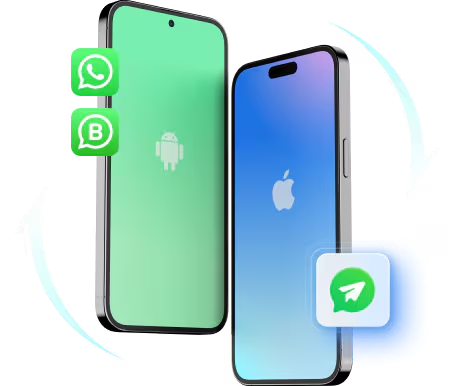
Transfer WhatsApp history effortlessly
If you have more than one device or want to swap your old device for a new one, Dr.Fone can selectively transfer your WhatsApp chat history between Android and iOS, it can also move any item you want, including attachments.
Transfer WhatsApp Business chats
Don’t worry about losing important WhatsApp Business chat histories when switching phones. With Dr.Fone, it’s easy to transfer your chat histories with attached media between iOS and iOS, Android and Android, or iOS and Android.
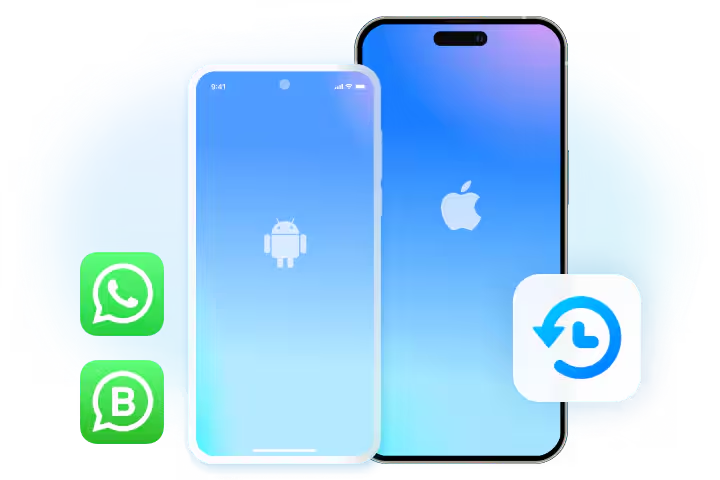
Back up WhatsApp history
It makes backing up your WhatsApp history much easier. The backup process happens automatically after connecting your phone and clicking. You can also preview and review each item, export it to your computer as a PDF or HTML file, and restore WhatsApp backups to your devices.
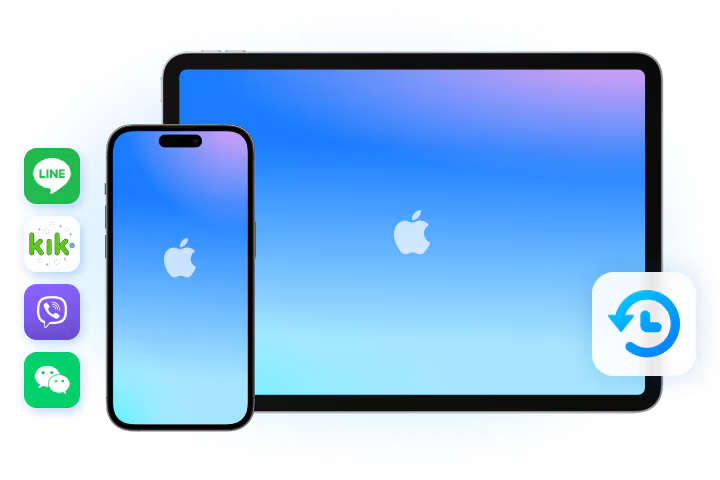
Backup iOS LINE/Kik/Viber/WeChat
Dr.Fone allows you to backup all LINE/Kik/Viber/WeChat chat history, including personal and group chats, text, voice and video chat history, pictures and stickers, etc. You can preview the backup file, restore the chat history, or even selectively export each item.
WhatsApp Transfer is not enough?
If transferring your social apps to a new phone isn’t enough for you, we recommend Phone Transfer for transferring more phone data, which allows you to transfer up to 15 file types without data loss.
iOS to Android
Photos, videos, contacts, blocked contacts list, messages, call log, bookmarks, calendar, voice memo, music, alarm recordings, voicemail, ringtones, wallpapers and notes.
iOS to iOS
Photos, videos, contacts, messages, call logs, bookmarks, calendar, voice memos, music, alarm recordings, voicemail, ringtones, wallpapers, notes and Safari history.
Android to iOS
Photos, videos, contacts, messages, call logs, bookmarks, calendar, voice memos and music.
Android to Android
Photos, videos, contacts, messages, call logs, bookmarks, calendar, voice memos, blacklist of contacts, music and applications.
*Call log is no longer supported on iOS 13. App data is not supported on devices running Android 9.0 or later.
Steps to use WhatsApp Transfer
01 Start the program on your computer
Launch Dr.Fone and click WhatsApp Transfer. Then select “Transfer WhatsApp Messages.”
02 Connect your devices to the computer
Connect the devices you want to transfer to the PC using a USB cable.
03 Click “Transfer” to move your WhatsApp data
Just leave your devices connected properly and then wait for the end.
Technical data
processor
1 GHz or faster processor (Intel or AMD)
R.A.M.
2 GB or more RAM
Hard disk storage
200 MB of free hard disk space
iOS & Android
Requires iOS 5 or higher
Requires Android OS 4.6 or higher
computer operating system
Requires Windows 7 or later
Requires Mac OS X 10.8 and later


Reviews
There are no reviews yet.